
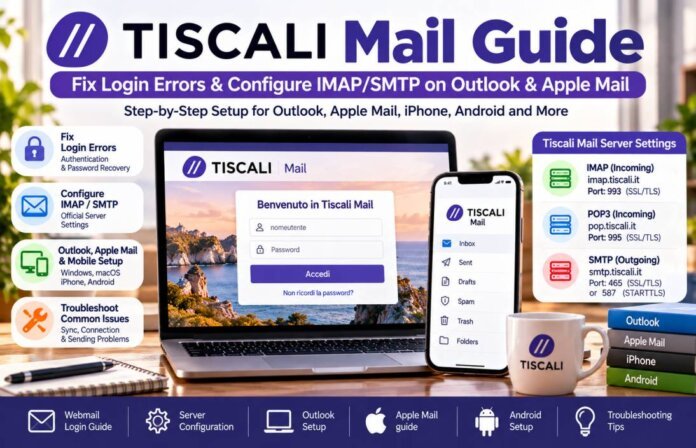
Is Tiscali Mail showing an authentication error? Does Outlook fail to connect, or does Apple Mail keep asking for your password?
These problems often come from incorrect server settings, an expired password, or a security check that needs your attention. A few changes can restore access without removing your email account.
This guide explains how to fix Tiscali Mail login errors, recover a forgotten password, set up IMAP and SMTP, and resolve sync problems on Outlook, Apple Mail, iPhone, iPad, and Android.
Quick Fixes for Tiscali Webmail Login & Authentication Errors
Before changing your email settings, check whether the problem affects Tiscali Webmail or just one app.
Open the official Tiscali Mail website and try to sign in. If webmail works but Outlook or Apple Mail fails, focus on the app’s server settings and saved password.
If webmail itself fails, check your login details, browser, and account security settings.
Resolving “Invalid Credentials” and Authentication Failures
The message Invalid Credentials or Authentication Failed usually means the email app cannot verify your account.
Try these steps in order.
1. Check your username and password.
Make sure your username matches your Tiscali account. Your email address looks like username@tiscali.it. The official configuration guide lists the full address for the IMAP account. Some older client guides use only the part before @tiscali.it in a separate username field, so follow the instructions for your app. (Tiscali server settings)
2. Test your login in Webmail.
Open mail.tiscali.it and sign in. If your password works in the browser but fails in your mail app, the app may have an outdated password or incorrect server details.
3. Check SSL/TLS settings.
Tiscali’s official settings use SSL/TLS on port 993 for incoming IMAP mail and port 465 for outgoing SMTP mail. A wrong port or security mode can prevent a connection. (Official configuration guide)
4. Update the saved password.
If you changed your Tiscali password recently, update it in Outlook, Apple Mail, and every phone app connected to the account. An old saved password can cause repeated login prompts.
5. Fix a blank Webmail screen.
If Tiscali Webmail opens to a blank page, try these checks:
- Reload the page.
- Open it in a private browsing window.
- Clear your browser cache and cookies.
- Disable browser extensions that may block page scripts.
- Update your browser.
- Try another browser or device.
If the blank screen continues across devices, check Tiscali’s official support site for account or service problems.
6. Check account security.
Tiscali may ask you to confirm your identity or associate a mobile number with your email account. Follow the verification steps shown in the official portal. If you cannot access the mailbox, use Tiscali’s account recovery instructions.
Step-by-Step Tiscali Password Recovery and Account Unlocking
If you have forgotten your password, use Tiscali’s official recovery process rather than trying repeated passwords.
- Open Tiscali Mail.
- Select Non ricordi la password? or the equivalent password recovery link.
- Enter the Tiscali email address for the account.
- Follow the instructions on the screen.
- If a mobile number is linked to the account, enter the OTP received by SMS.
- Set a new password and confirm it.
- Return to the login page and sign in with your new details.
Tiscali documents this process in its official password recovery guide.
If your mobile number is not linked to the account, or you can no longer access it, Tiscali provides a separate access recovery process. This may require a completed form and a copy of an identity document.
After regaining access, update your password in each mail app. Choose a strong password that you do not use for other accounts.
How to Configure Tiscali Mail on Microsoft Outlook (Windows & Mac)
Outlook can manage Tiscali Mail through IMAP or POP3. IMAP is the better option for most people because it keeps the mailbox synchronised across devices.
For an up-to-date setup, use Tiscali’s official server values rather than settings copied from an old tutorial.
Official IMAP and SMTP Server Ports for Outlook
Use the following values for a standard @tiscali.it account.
| Setting | Incoming Mail (IMAP) | Outgoing Mail (SMTP) |
| Server | imap.tiscali.it | smtp.tiscali.it |
| Port | 993 | 465 |
| Security | SSL/TLS | SSL/TLS |
| Username | Full email address | Same account credentials |
| Authentication | Required | Required |
Tiscali lists port 465 with SSL for outgoing mail. Use this value first rather than choosing port 587 from a generic email setup guide. (Official Tiscali parameters)
To configure Outlook:
- Open Outlook and select Add Account.
- Enter your full Tiscali email address.
- Choose manual setup or advanced settings if automatic setup fails.
- Select IMAP as the account type.
- Enter imap.tiscali.it, port 993, and SSL/TLS.
- Enter smtp.tiscali.it, port 465, and SSL/TLS.
- Enable authentication for the outgoing server.
- Use the same Tiscali account credentials for incoming and outgoing mail.
- Save the settings and test both sending and receiving.
The exact menu names may differ between classic Outlook and the new Outlook app.
Troubleshooting Outlook Connection Timeouts
If Outlook cannot connect to Tiscali Mail, check the following items.
Wrong incoming port: IMAP should use port 993 with SSL/TLS. A different port or security mode can cause a connection failure.
Outgoing server authentication disabled: Open the SMTP settings and enable authentication. Use the same account credentials as the incoming server.
Incorrect encryption: Choose SSL/TLS for the server settings listed above. Do not combine a port with an incompatible encryption option.
Old password stored in Outlook: Update the saved credentials after changing your Tiscali password. If Outlook continues to show a login prompt, remove the outdated saved password and sign in again.
Firewall or security software: A firewall may block an email connection. Check its settings if other network services work but Outlook cannot reach the mail servers.
Account setup error: If you have made several unsuccessful changes, review the server names, ports, username, and password before deleting the account. Save any mail stored only on your computer first.
If Outlook still fails, test the same account in Webmail. This helps separate a server or account issue from an Outlook configuration problem.
Setting Up Tiscali Email on Apple Mail (macOS, iPhone, & iPad)
Apple Mail supports Tiscali through manual IMAP and SMTP settings. You can use the same mailbox on your Mac, iPhone, and iPad.
Adding Tiscali Mail to Apple Mail on Mac
Follow these steps to set up Tiscali Mail on macOS.
- Open the Mail app.
- Select Mail → Settings or Mail → Preferences, depending on your macOS version.
- Open Accounts and select Add Account.
- Choose Other Mail Account if Tiscali is not listed.
- Enter your name, full Tiscali email address, and password.
- If automatic setup fails, choose manual configuration.
- Select IMAP as the account type.
- Enter imap.tiscali.it, port 993, with SSL/TLS.
- Enter smtp.tiscali.it, port 465, with SSL/TLS.
- Save the account and send a test message.
If Mail asks for a username on each server, follow the account format shown by Tiscali for that client. The full address is the standard account identifier in the official parameter table. (Tiscali configuration guide)
If Apple Mail keeps asking for your password: First test the password on Tiscali Webmail. If webmail works, check the saved credentials and server settings in Apple Mail.
Configuring Tiscali on iOS (iPhone & iPad Settings)
To add Tiscali Mail to the iPhone or iPad Mail app:
- Open Settings.
- Go to Apps → Mail → Mail Accounts. Older iOS versions may show Settings → Mail → Accounts.
- Tap Add Account.
- Select Other → Add Mail Account.
- Enter your name, email address, password, and a description.
- Choose IMAP when asked for the account type.
- Set the incoming server to imap.tiscali.it.
- Set the incoming port to 993 and enable SSL/TLS.
- Set the outgoing server to smtp.tiscali.it.
- Set the outgoing port to 465 and enable SSL/TLS.
- Save the account.
Open Mail and check that new messages appear. Send a test email to confirm that SMTP is working as well.
If incoming mail works but sending fails, check the outgoing server, authentication, and SSL/TLS settings. If neither works, test your login on Tiscali Webmail and check whether the password needs to be reset.
Fixing Tiscali Mail Sync Issues on Android Devices
Android email apps can stop syncing when background data is restricted, the password has changed, or the account settings are incorrect.
Start by checking whether new mail appears in Webmail. If messages are visible there but not on the phone, the problem is more likely to be app configuration or sync settings.
Setting Up Tiscali IMAP in the Android Gmail App
You can configure Tiscali Mail in Gmail or the default email app on Android.
- Open Gmail and tap your profile icon.
- Select Add another account.
- Choose Other.
- Enter your full Tiscali email address.
- Select IMAP.
- Enter the incoming server imap.tiscali.it.
- Set port 993 and security to SSL/TLS.
- Enter the outgoing server smtp.tiscali.it.
- Set port 465 and security to SSL/TLS.
- Enable SMTP authentication and save the settings.
Tiscali’s official Android guide uses these server names, ports, and security settings. It lists the email address in the Email field and the username before @tiscali.it in a separate username field. Follow the field labels in your app and the format requested by Tiscali if authentication fails. (Official Android setup guide)
After saving the account, open the inbox and pull down to refresh. Send a test message to confirm that both incoming and outgoing mail work.
Why Is My Tiscali Mail Not Syncing? (Push vs. Fetch Fixes)
If Tiscali Mail is not syncing on your phone, try these fixes.
1. Check automatic sync. Make sure account sync is enabled in Android settings and in the mail app.
2. Allow background data. Open the app’s settings and allow background data use. Battery saver or data saver can delay mail checks.
3. Check sync frequency. Some email apps check for new mail at set intervals rather than receiving instant push updates. Choose a shorter interval if you need faster notifications.
4. Review battery restrictions. If Android puts the email app to sleep, notifications may arrive late. Adjust battery settings for the mail app if needed.
5. Check folders and filters. A message may be in Spam, Trash, or another folder rather than the inbox.
6. Update your credentials. If you changed your Tiscali password, update the saved password in the app. Re-enter the correct IMAP and SMTP settings if the connection still fails.
7. Reconnect the account as a last step. Before removing it, check whether you have messages stored only on the device. Back up local messages first.
For more detailed instructions, use Tiscali’s official Android mail guide.
Tiscali Mail Troubleshooting Checklist
If you still have problems, work through this short checklist:
- Sign in to Tiscali Webmail.
- Recover the password if you cannot sign in.
- Confirm that account verification is complete.
- Use IMAP server imap.tiscali.it, port 993, with SSL/TLS.
- Use SMTP server smtp.tiscali.it, port 465, with SSL/TLS.
- Enable SMTP authentication.
- Update the password in Outlook, Apple Mail, and Android apps.
- Clear browser cache if Webmail shows a blank screen.
- Check background data and sync frequency if mobile mail is delayed.
- Save local messages before removing or rebuilding an account.
Final Thoughts
Most Tiscali Mail errors come from incorrect credentials, outdated passwords, or server settings that do not match the provider’s requirements.
Start with Webmail to check your account. Then confirm the IMAP and SMTP details in Outlook, Apple Mail, or your Android app.
For most users, IMAP on port 993 with SSL/TLS and SMTP on port 465 with SSL/TLS is the right setup. If a password reset or security check is required, use Tiscali’s official recovery process.
If the error continues after these steps, visit the Tiscali Assistance Centre and follow the account-specific instructions.