
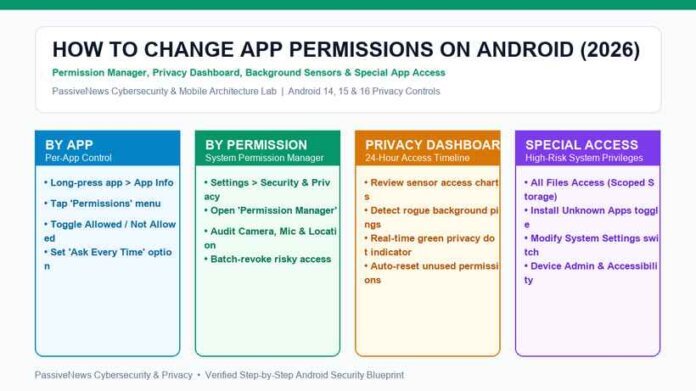
Direct Summary & Immediate Action: To change app permissions on Android, open Settings > Security & Privacy > Permission Manager to adjust permissions by feature (Camera, Microphone, Location, Contacts), or go to Settings > Apps > See all apps, select any installed application, tap Permissions, and toggle individual hardware access between Allow only while using the app, Ask every time, or Don’t allow.
Modern Android operating systems (Android 14, 15, and 16) enforce granular runtime sandboxing that prevents third-party software from quietly accessing sensitive smartphone sensors in the background. Understanding how to audit these access vectors protects your personal data from unauthorized telemetry, aggressive advertising trackers, and covert spyware.
Method 1: Change Permissions for a Specific App (The Fastest Route)
When you notice an individual game, social media client, or utility requesting unnecessary device privileges, modifying permissions directly through the application’s system info panel is the most direct solution:
- Long-Press Shortcut: Locate the app icon on your home screen or app drawer, long-press it, and tap the App Info icon (an encircled “i”).
- Access the Permissions Menu: Under the app settings screen, tap Permissions.
- Review Allowed vs Not Allowed: Android categorizes privileges into two distinct sections: Allowed and Not Allowed.
- Modify Sensor Access: Tap on any sensitive parameter (e.g., Location, Camera, or Microphone) and select your preferred restriction level. Selecting “Ask every time” forces the app to request temporary single-session access whenever the hardware sensor is triggered.
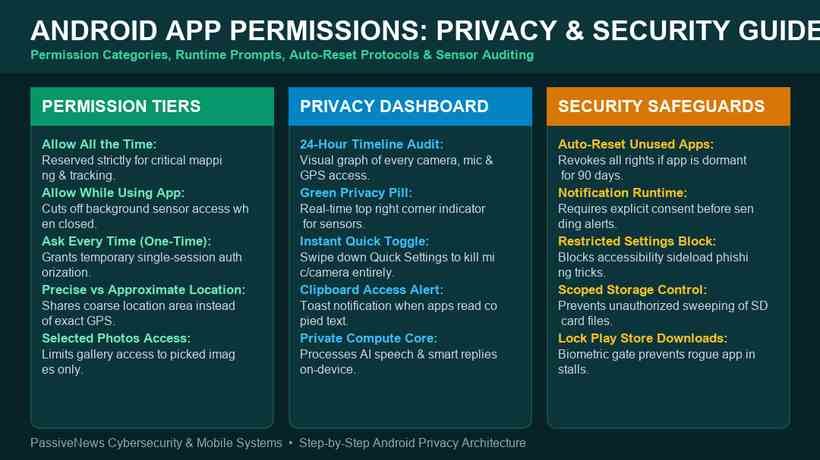
- Enable Auto-Reset: Toggle on “Pause app activity if unused” (Auto-Reset Permissions) to automatically strip all granted privileges if you do not launch the app for three months.
Method 2: Audit by Sensor Type Using Permission Manager (System-Wide Control)
If your goal is a comprehensive privacy audit to see every application currently authorized to access your camera, microphone, or GPS chip, utilizing the centralized Android Permission Manager is essential:
- Open System Settings: Launch your device’s Settings app and scroll down to Security & Privacy.
- Navigate to Privacy: Tap Privacy, then select Permission Manager.
- Select a Sensitive Category: Tap on high-risk hardware categories such as:
- Location: Ensure navigation apps (Google Maps, Waze) are set to “While using app” with Use precise location enabled, while casual apps (weather, food delivery) are downgraded to approximate location only.
- Microphone & Camera: Revoke always-on rights from shopping apps, casual games, and third-party keyboards.
- Photos & Videos: Leverage the Photo Picker to permit access only to selected media files rather than granting an entire device storage sweep.
- Body Sensors & Physical Activity: Limit continuous tracking strictly to verified fitness trackers.
- Batch Revocation: Tap on any non-essential app listed under Allowed and switch its status immediately to Don’t allow.
Method 3: Reviewing the 24-Hour Privacy Dashboard Timeline
Android includes a dedicated Privacy Dashboard that visualizes exactly which applications accessed your camera, microphone, and location over the preceding 24 hours (or 7 days on newer builds). If a rogue background process attempts silent telemetry while your display is off, the timeline highlights the exact minute and duration of the event.
Furthermore, Android displays a persistent Green Privacy Dot in the top-right corner of the status bar whenever any active app engages your camera or microphone. Swiping down the notification shade reveals the exact app responsible, allowing you to instantly sever its access. In high-security environments, combining hardware sensor controls with app-store level installation locks—as detailed in our technical guide on how to lock the Google Play Store with biometric gates—prevents unauthorized secondary software from infiltrating your operating system.
Method 4: Managing High-Risk Special App Access Privileges
Beyond standard runtime permissions, Android reserves an elite tier of system-level privileges termed Special App Access. These capabilities allow software to bypass standard sandboxing and should be audited with extreme caution:
- All Files Access (MANAGE_EXTERNAL_STORAGE): Grants complete, unrestricted read-and-write capabilities across all device folders. Only dedicated file managers and backup tools require this privilege.
- Install Unknown Apps: Controls whether an app (such as Chrome or a messaging app) can sideload raw APK packages. Keep this disabled across all browsers to prevent drive-by malware execution. Securing enterprise devices against compromised network vectors is a core tenet analyzed across elite industry accreditations, as highlighted in our breakdown of top cybersecurity certifications and threat mitigation.
- Device Admin Apps & Accessibility Services: Malware often attempts to trick users into granting Accessibility privileges to read on-screen banking credentials. Android’s Restricted Settings mechanism blocks sideloaded apps from activating accessibility services unless explicitly unlocked via biometric verification.
- Display Over Other Apps: Prevents malicious overlay attacks (tapjacking) that place invisible clickable buttons over banking prompts.
| Permission Type | Recommended Security Setting | Primary Risk Factor | Audit Frequency |
|---|---|---|---|
| Precise GPS Location | Only while using app (Approximate for social/shopping) | Continuous physical routine tracking & ad profiling | Monthly review |
| Microphone & Camera | Ask every time / While using app only | Unauthorized room audio recording or visual capture | Bi-weekly audit |
| Photos & Media | Select photos only (Photo Picker) | Unrestricted scraping of private galleries & documents | Upon new app install |
| Special All Files Access | Don’t allow (except system file managers) | Ransomware encryption or unmonitored data exfiltration | Immediate inspection |
How to Revoke Instant Permissions via Quick Settings Toggles
When conducting confidential business discussions or entering secure environments, Android allows you to instantly disable hardware sensor access device-wide with a single tap. Swipe down twice from the top of your screen to open the full Quick Settings panel. If not already pinned, tap the edit (pencil) icon and drag the Camera Access and Mic Access tiles into your active tray.
Tapping these master kill-switches globally disconnects all software from your camera and microphone modules at the operating system kernel level. Any app that attempts to open the camera will receive a blank video feed until you tap the toggle again to re-enable sensor transmission.
Frequently Asked Questions (FAQs)
What happens if I deny an app a requested permission?
In modern Android versions, denying non-essential permissions (such as contacts or location for a photo editor) will not crash the app. The operating system provides dummy or empty data, allowing the core application to function normally.
How do I stop apps from tracking my exact location on Android?
Open Settings > Location > App location permissions. Select the app and toggle off ‘Use precise location’. The app will now receive only an approximate, coarse regional coordinate (roughly 3 square kilometers) rather than your exact GPS street address.
Why did my Android phone automatically remove permissions from an app?
Android includes an automated security mechanism called Auto-Reset Permissions. If you do not open an installed application for 90 days, the operating system automatically strips all granted permissions to protect your privacy.