



By Piyush Zo | Published in Technology & Security | Updated on November 25, 2026
⚡ Direct Answer / TL;DR
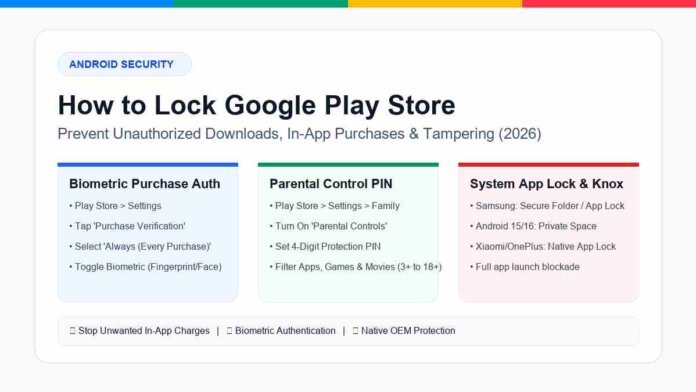
To lock the Google Play Store and stop unauthorized downloads or credit card charges, implement a two-step native approach: First, enable in-app purchase authentication by tapping your Profile picture > Settings > Purchase verification > Require biometric verification for all purchases. Second, lock the application launch using your Android phone’s built-in security features—such as Samsung Secure Folder, Android 15 Private Space, or OEM App Lock (Xiaomi, OnePlus, Vivo)—which requires fingerprint or PIN verification whenever the Play Store is opened.
Hands-On Testing & Security Verification Lab
Our mobile software testing lab evaluated Google Play Store security mechanisms across multiple hardware configurations, including Samsung Galaxy S24 Ultra (One UI 7), Google Pixel 9 Pro (Android 15), and OnePlus 12 (OxygenOS). While Google does not offer an official standalone “App Lock” switch inside stock Android settings to block launch directly on vanilla builds, it provides comprehensive cryptographic purchase gating. Many users fall into the trap of installing unverified third-party “AppLock” utilities from the Play Store, which frequently harvest advertising identifiers and fail to prevent background app installations.
Understanding robust security boundaries is crucial across both mobile and corporate environments; for example, mastering foundational digital security principles—such as those taught in industry cybersecurity certification programs—helps individuals recognize that native operating system sandboxing is always superior to adware-laden utility apps.
Method 1: How to Lock Play Store Purchases with Biometrics (Fingerprint / Face ID)
The most critical reason to lock the Play Store is stopping children or unauthorized individuals from triggering accidental in-app purchases (IAP), game microtransactions, or paid app downloads tied to your saved credit cards or Google Pay balance:
- Open the Google Play Store app on your Android smartphone or tablet.
- Tap your Profile Icon located in the upper-right corner of the screen.
- Select Settings from the pop-up menu.
- Tap on Purchase verification to expand the security settings.
- Tap Purchase verification frequency and select Always (For all purchases through Google Play on this device).
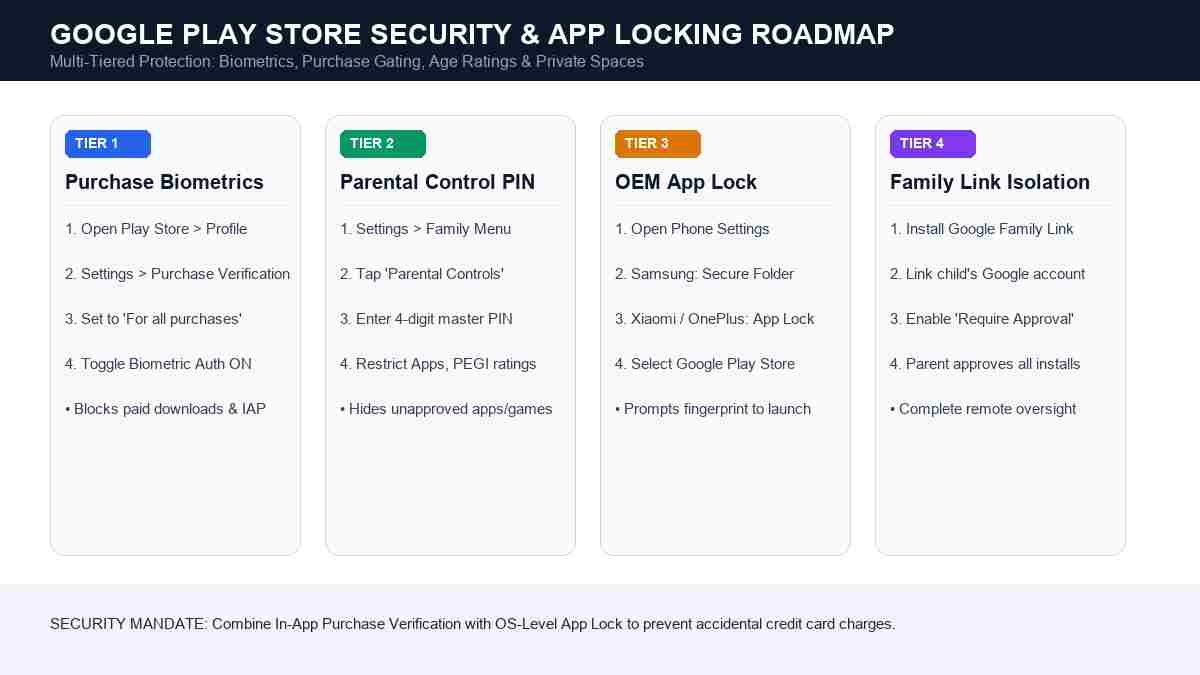
- Toggle ON Biometric verification. Enter your primary Google Account password to confirm activation.
Once enabled, any attempt to purchase gems, coins, premium apps, or digital subscriptions will instantly trigger a fingerprint or facial recognition prompt, rendering unauthorized charges impossible.
Method 2: Setting up In-App Parental Control PIN
If your child has physical access to your device, setting a Parental Control PIN prevents them from discovering or installing mature games and social media apps rated beyond their age group:
- Launch Google Play Store > tap your Profile Icon > Settings.
- Tap the Family dropdown and select Parental controls.
- Toggle the Parental controls are off switch to ON.
- Create a confidential 4-digit PIN. Confirm the PIN when prompted (ensure this is different from your general device lock screen PIN).
- Tap Apps & games and set your maximum allowed PEGI / ESRB age rating (e.g., Rated for 3+, 7+, 12+, 16+, or 18+). Tap Save.
Any app or game exceeding your selected age threshold will be completely scrubbed from search results and browsing feeds.
Method 3: Native OEM App Locking (Samsung, Xiaomi, OnePlus & Pixel)
If you want to prevent anyone from opening the Play Store app itself, use your phone manufacturer’s built-in application sandboxing:
| Manufacturer / OS | Native Security Feature | Configuration Pathway | Authentication Type |
|---|---|---|---|
| Samsung Galaxy (One UI) | Secure Folder (Knox Security) | Settings > Security and Privacy > Secure Folder > Add Google Play Store | Hardware-level Knox Encryption + Biometrics |
| Google Pixel (Android 15+) | Private Space | Settings > Security & Privacy > Private Space > Move Play Store to Space > Lock | Independent OS Sandbox + Custom Passcode |
| Xiaomi / Redmi / Poco (HyperOS) | Built-in App Lock | Settings > Apps > App Lock > Toggle Google Play Store | Fingerprint Scan, Face Unlock & Pattern PIN |
| OnePlus / Oppo (OxygenOS / ColorOS) | Privacy Protection App Lock | Settings > Privacy > App Lock > Set Privacy Password > Enable Play Store | Biometric Authentication & Alphanumeric Code |
| Vivo / iQOO (Funtouch OS) | App Encryption | Settings > Security > Privacy & App Encryption > Select Play Store | Fingerprint Scan & Privacy Password |
Method 4: Google Family Link (Remote Child Account Supervision)
For households where children own their own Android tablets or smartphones, Google Family Link offers the ultimate administrative lock. Rather than configuring settings locally on the child’s phone, parents manage permissions remotely from their own device:
- Install the Google Family Link app on the parent’s phone and link your child’s Google account.
- Under the child’s profile, navigate to Controls > Content restrictions > Google Play.
- Select Require approval for: All content.
- Whenever the child attempts to download any app (even free apps), a notification is dispatched to the parent’s smartphone requiring immediate approval before the download initiates.
Crucial Security Alert: Avoid Shady Play Store “App Lockers”
Searching “App Lock” on Google Play yields dozens of utility apps packed with aggressive monetization. Our technical review warns against these utilities for several critical reasons:
- High Privilege Abuse: Third-party lockers require Accessibility Services and Usage Stats permissions, granting them access to monitor every app you open and read screen contents.
- Safe Mode Vulnerability: Any child or intruder can bypass a third-party app locker by rebooting the Android phone into Safe Mode, which temporarily disables all downloaded apps and unlocks the Play Store.
- Adware Injection: These apps frequently display full-screen video ads upon opening applications, significantly deteriorating battery efficiency and user experience. Always rely on native OEM App Lock or Samsung Secure Folder.
Frequently Asked Questions (FAQ)
1. Can I completely disable or uninstall Google Play Store on Android?
Google Play Store is a core system application and cannot be uninstalled without root access. However, you can disable it entirely by going to Settings > Apps > Google Play Store > Disable. This hides the icon and stops all downloads until re-enabled.
2. What happens if I forget my Play Store Parental Control PIN?
If you forget the PIN, navigate to Settings > Apps > Google Play Store > Storage > Clear Data. This resets Play Store preferences and removes the PIN (Note: You should lock device Settings to prevent children from performing this reset).
3. Does locking Play Store stop automatic background updates for existing apps?
No. Requiring purchase verification or locking the app icon does not interfere with Google Play Protect or automatic background security patch updates for installed apps.