


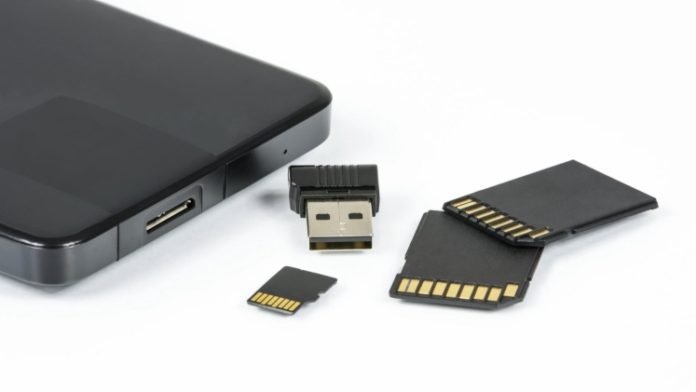
In this section we will tell you how you can repair a corrupted SD memory with a few simple steps. As you know, most people have a micro SD card inside their Android mobile devices, which they use to store photos, videos, documents, among other content.
For various reasons a card like these gets damaged, plus they are prone to corruption. When this happens, your device cannot recognize or mount it. Many times your mobile will show messages that the SD card is blank, or that it has an unsupported file system. For this reason we will tell you how to repair a damaged SD.
And since we are talking about Android devices, we recommend this article to reduce WhatsApp storage space on your Android mobile.
At SalvageData we have everything you need to sd recovery the hardware of your mobile device and to update the software or repair it, you just have to visit us and we can solve the problem.
How to Repair a Damaged SD Memory on an Android Mobile?
If you see that an error appears on your SD card unexpectedly and does not allow you to save files on your mobile, the question arises of how you can repair a damaged SD. Well, you just have to take into account the recommendations and methods that we prepare for you below.
1. – Repair a Damaged SD Memory: You must Format it
When it comes to a corrupted SD, the first thing that could be done is to format it. It is the simplest, most efficient method and the one that will correct all the errors that your memory could have. You just have to remove the SD memory from your mobile and connect it to your computer. When it’s connected and the PC reads it, right-click on it and select the Format option.
You just have to wait for the process to complete, if not, you can download various partition tools. One of them is EaseUs, which is free and specializes in formatting SD memories.
After you download it, open the EaseUS Partition Master Software. Now select your corrupted SD card and right click on the partition you want to format. After this, you just have to click Format.
Now you need to set a new partition label to repair a corrupted SD memory. The file systems are NTFS / FAT32 / EXT2 / EXT3. You must also select the cluster size on the partition you chose. After this, click OK.
You just have to click on the Execute operation button, found in the toolbar, then click on the Apply option and thus start formatting your corrupted SD memory.
You can Recover your Files from a Damaged Micro SD Memory
Many users do not format their corrupted SD memory because this process deletes all the files that are there. But don’t worry, the EaseUS tool has a data recovery tool. Making this a second method on how to repair a corrupted SD memory. So before formatting it, you can recover the data and information that is there before doing it.
The first thing you have to do is run the CHKDSK so that you can repair errors or corrupted data on your SD card on Android. This option can be done if you do not want to format your micro SD card and so you can try to repair it or at least recover the information.
All you have to do is connect your card to your computer, when it is connected you just have to follow this path: click Start – All Programs – Accessories – Command Prompt. When you are there, you must enter the command chkdsk (drive where the SD card is): / r. This will start the chkdsk tool to scan and repair errors on your SD card.
You can try an Alternative to CHKSDK
Here the use of third-party software is ideal if you want to reduce the risk of losing information. In addition, if you do not have previous knowledge of doing the CHKSDK from the command line, a software is essential. Most of the time the command prompt command line is used by professionals.
To the question of how to repair a corrupted SD memory, EaseUS Tools Master is a tool that can help you again with this as an alternative to the CHKSDK command and tool. With just one click you can solve and repair your damaged micro SD memory.
As we presume that you already have the software installed, you just have to open it and select the File Repair option in the left sector of the tool. Now you must choose the drive and check the bottom box that says: “Verify and correct the file system error.” Then just click Repair and the tool starts doing its job.
Now you just have to wait until this operation is completed. Once it’s done, click the View button to check the status of your SD memory.
You can Try other Third Party Software
If you are a user of an Android mobile device, it is almost obvious that you have to buy an SD memory to get more external storage. But we must tell you that not an SD memory that is 100% reliable so you can safely store your data. Also, if you want to learn how to recover your corrupted SD memory, we must tell you that a third-party software tool is not infallible either.
Among the tools that you can use, there are some that can backup important data and save it on your computer. You can use the FoneDog Data Recovery tool and its secondary tool FoneDog Data Backup and Restore, with this specialized software you can recover data, save it and repair your damaged SD memory.
If you need any hardware repair or software file recovery for your Honor mobile device, we have all the necessary tools to solve your problem. We deliver 100% guaranteed and high quality work. Besides that your device will be in optimal condition.